
[et_pb_section fb_built=”1″ theme_builder_area=”post_content” _builder_version=”4.27.4″ _module_preset=”default”][et_pb_row _builder_version=”4.18.0″ _module_preset=”default” width=”100%” custom_margin=”|||0px|false|false” global_colors_info=”{}” theme_builder_area=”post_content”][et_pb_column type=”4_4″ _builder_version=”4.18.0″ _module_preset=”default” global_colors_info=”{}” theme_builder_area=”post_content”][et_pb_code _builder_version=”4.27.4″ _module_preset=”default” global_colors_info=”{}” theme_builder_area=”post_content”]

What You Need:

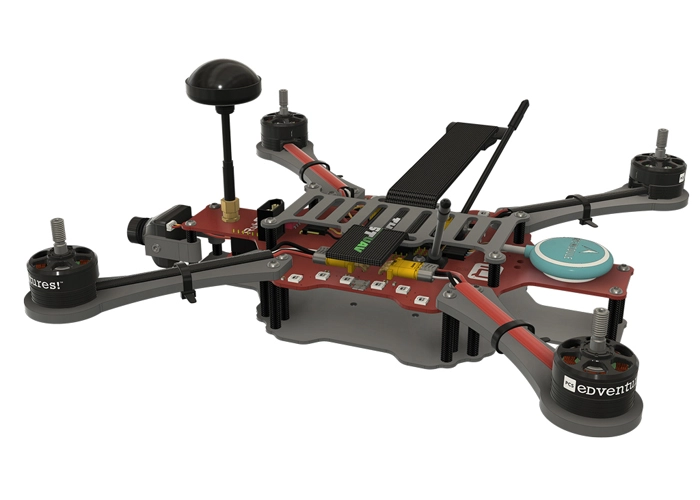
RubiQ 2.0
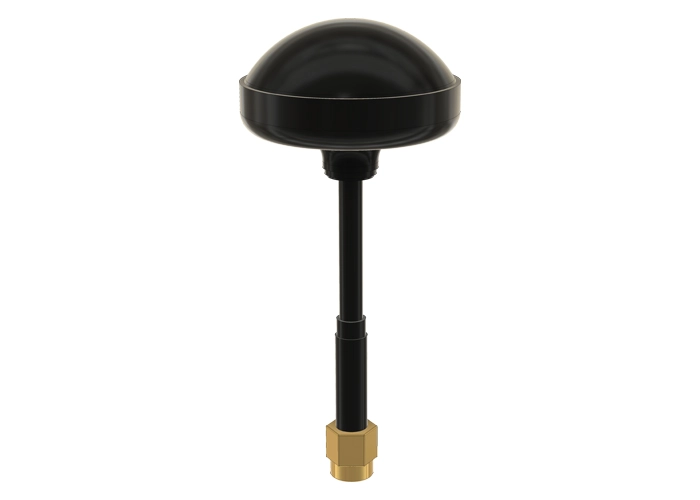
Antenna
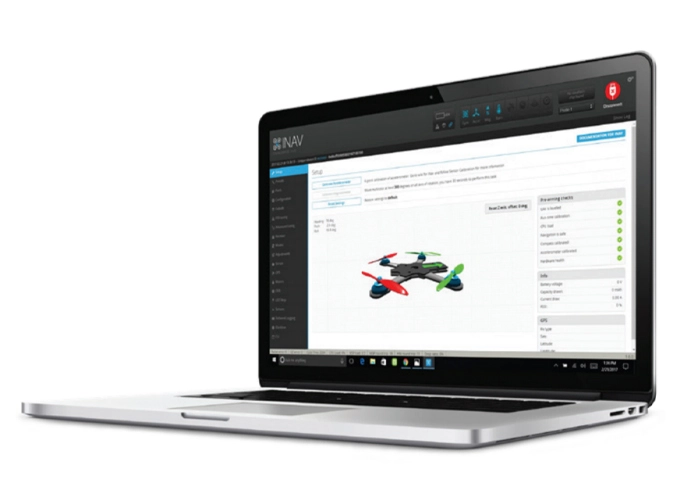
INAV 1.9.3
USB Cable
[/et_pb_code][et_pb_text _builder_version=”4.27.4″ _module_preset=”default” width=”100%” global_colors_info=”{}” theme_builder_area=”post_content”]

Steps:

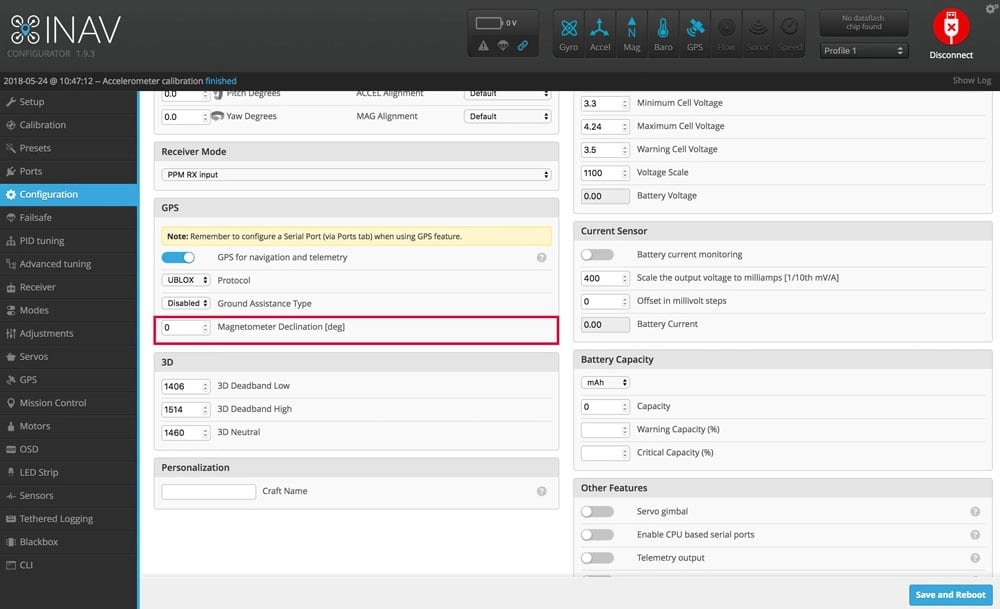
Go to the Configuration tab and scroll down to the GPS section.

  • Look up the magnetic declination for your zip code on the NOAA website at:
    https://www.ngdc.noaa.gov/geomag-web.
  • Enter your zip code, click Calculate, and then adjust the degrees in INAV. For example, if the declination is 13° 28′, enter “13.28”.
  • Note: magnetic declination is the difference between magnetic north and true north, and it is the key to accurate navigation. Declination is shown with an “E” or a “W” for East or West. If it is E, enter a positive number, and if it is W, enter a negative number with a “minus” sign. For example, 13° 28′ E would be entered as “13.28” and 13° 28′ W would be entered as “-13.28” in INAV.

  • Click Save and Reboot in the lower right corner to set the new declination.
[/et_pb_text][et_pb_image src=”https://staging.resources.edventures.com/wp-content/uploads/2025/06/Magnetic-Declination-1.9.3.webp” title_text=”Magnetic-Declination-1.9.3″ show_in_lightbox=”on” _builder_version=”4.27.4″ _module_preset=”default” global_colors_info=”{}” theme_builder_area=”post_content”][/et_pb_image][et_pb_text _builder_version=”4.27.4″ _module_preset=”default” width=”100%” global_colors_info=”{}” theme_builder_area=”post_content”]

You’ve completed all the Steps of Configuration, but RubiQ isn’t ready to fly just yet!

Next, you’ll need to complete a Pre-Flight Check.

[/et_pb_text][/et_pb_column][/et_pb_row][/et_pb_section]