[et_pb_section fb_built=”1″ _builder_version=”4.27.4″ _module_preset=”default” global_colors_info=”{}”][et_pb_row _builder_version=”4.18.0″ _module_preset=”default” width=”100%” custom_margin=”|||0px|false|false” global_colors_info=”{}”][et_pb_column type=”4_4″ _builder_version=”4.18.0″ _module_preset=”default” global_colors_info=”{}”][et_pb_code _builder_version=”4.27.4″ _module_preset=”default” hover_enabled=”0″ global_colors_info=”{}” sticky_enabled=”0″]
What You Need:


Steps:
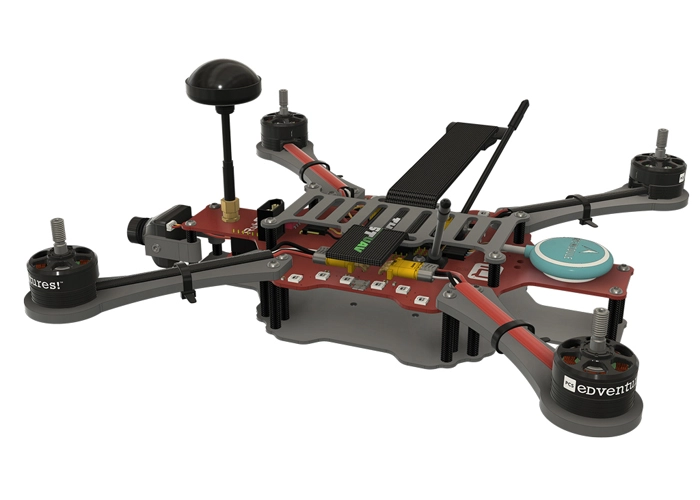
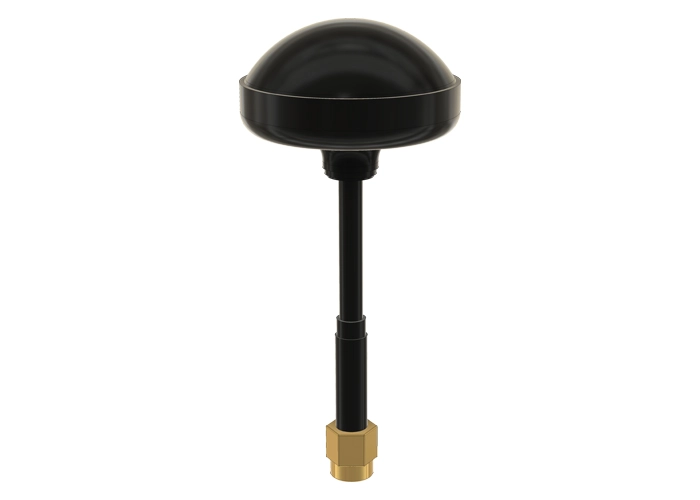
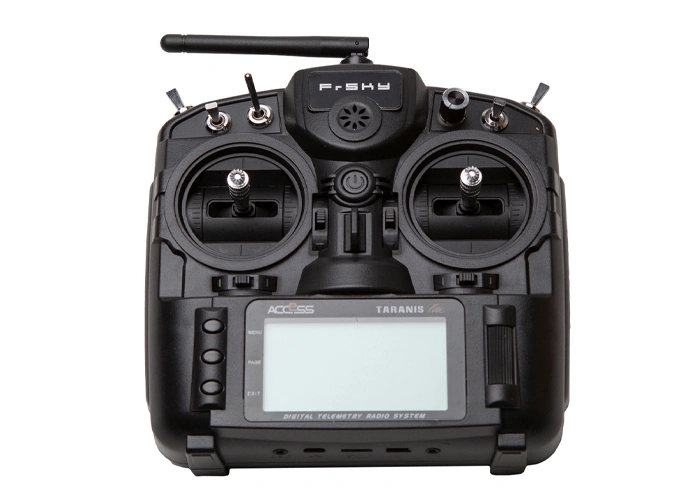
WARNING! Remove props and attach the antenna before verifying channel mapping.
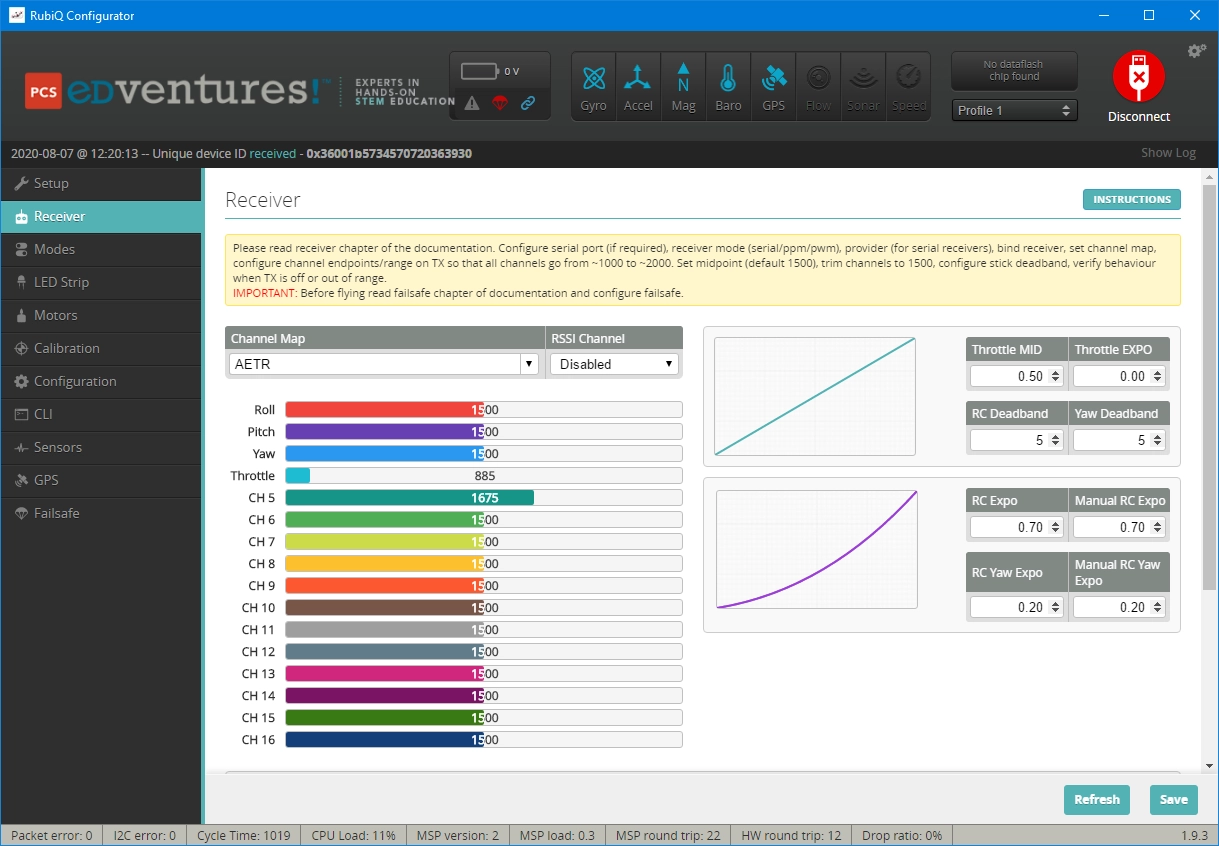
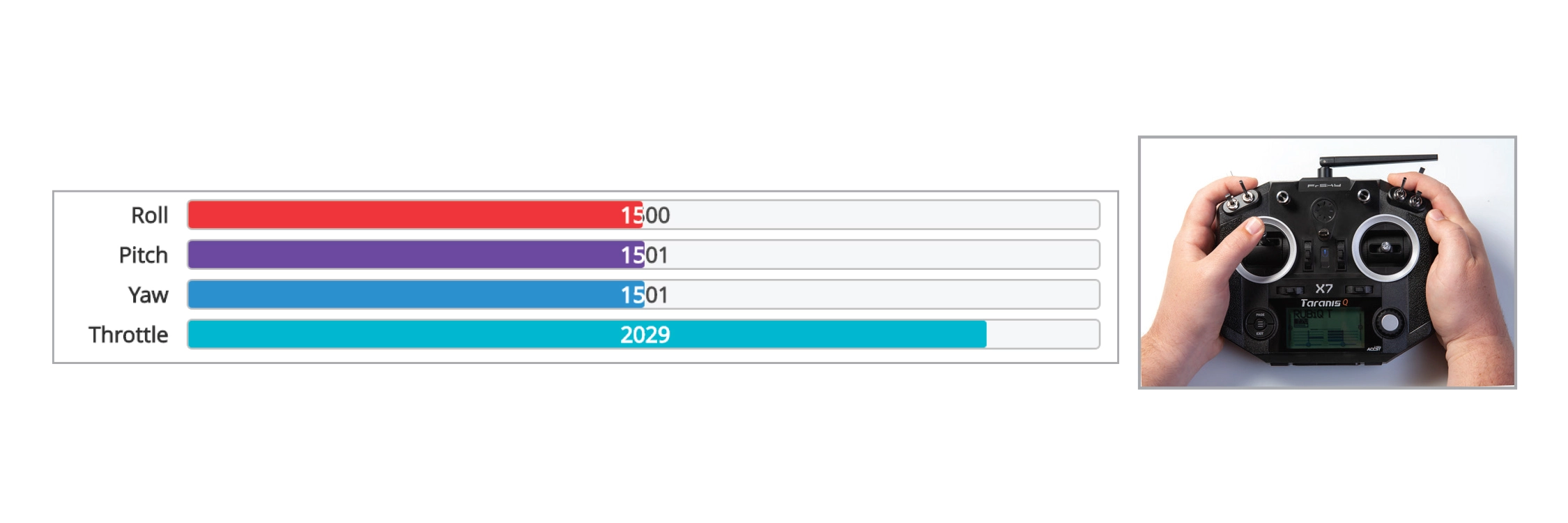
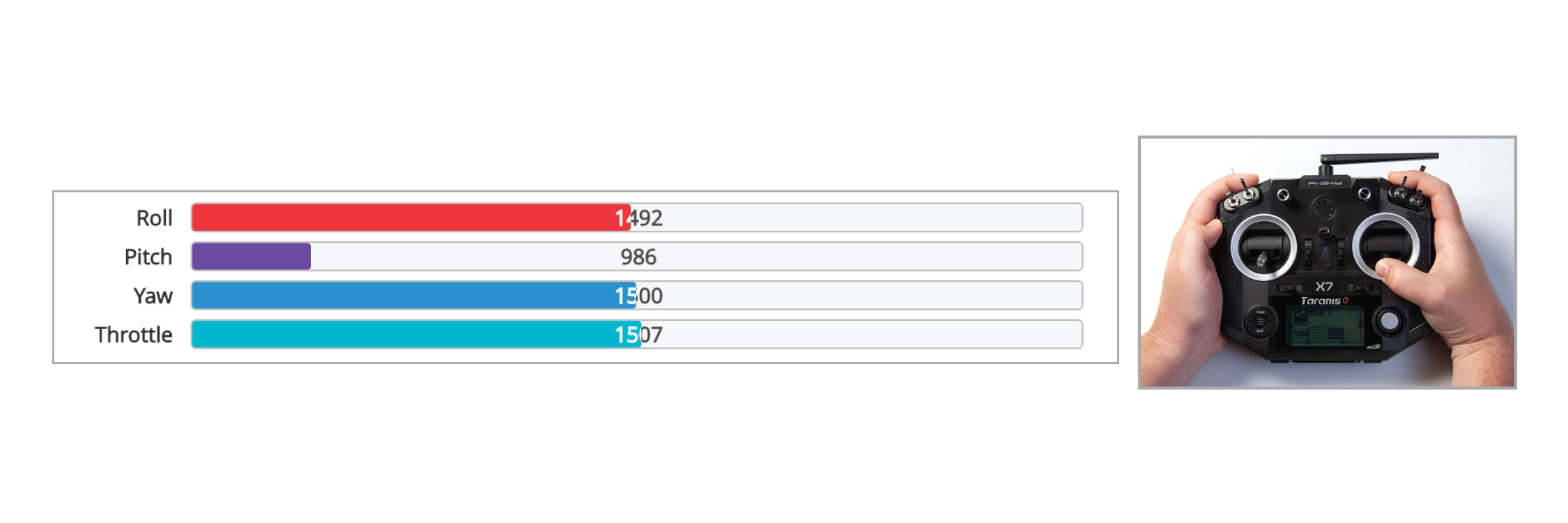
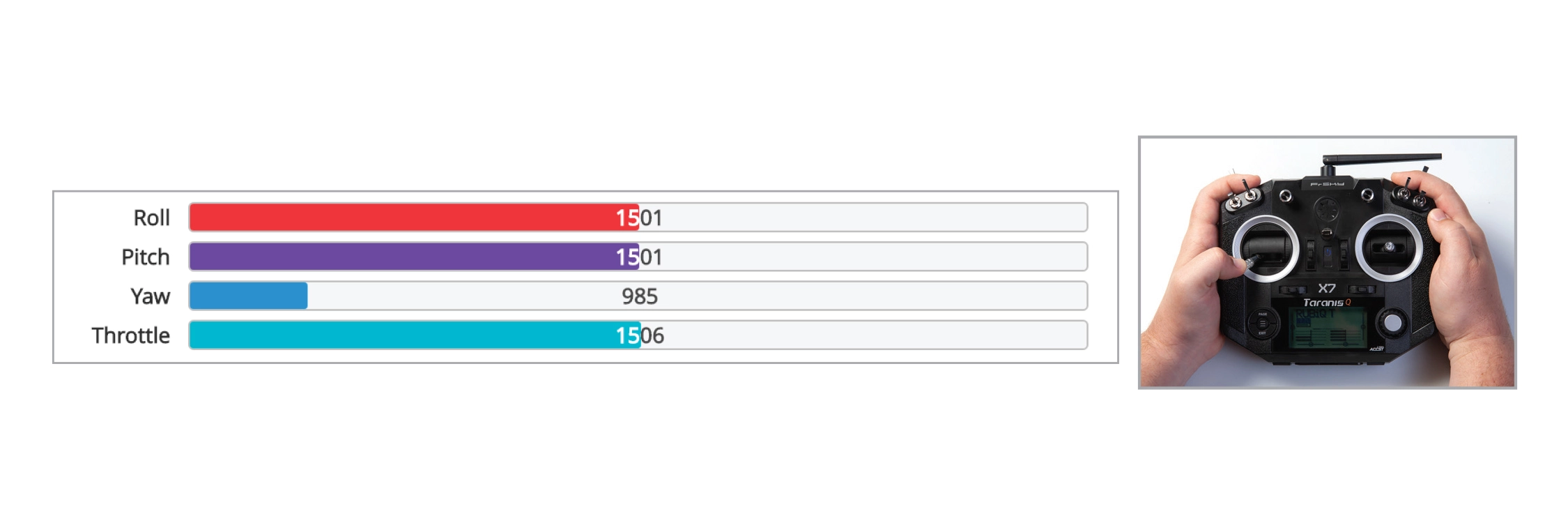
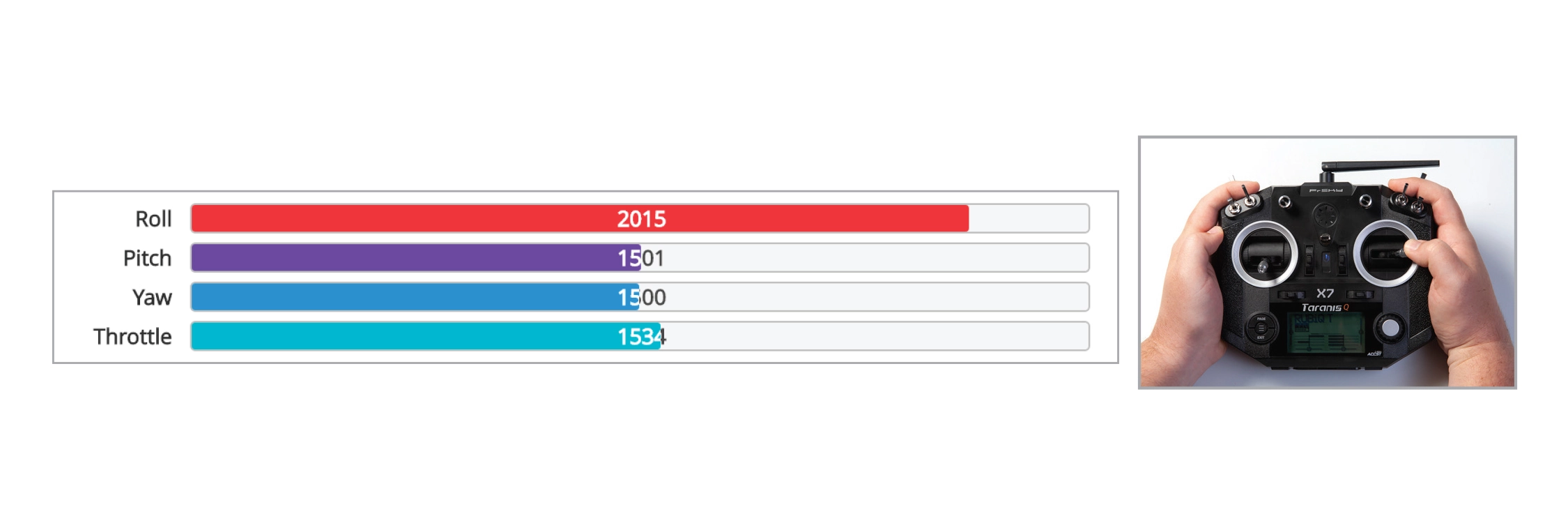
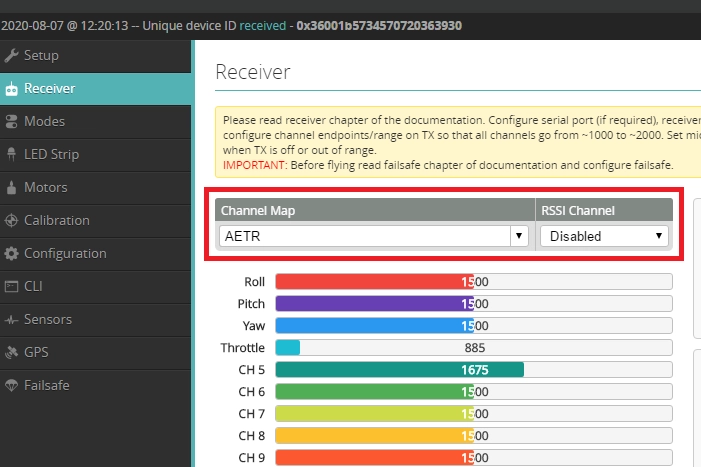
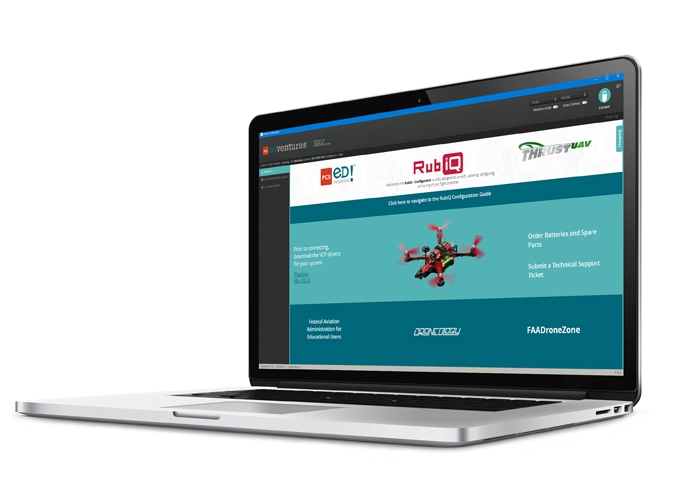
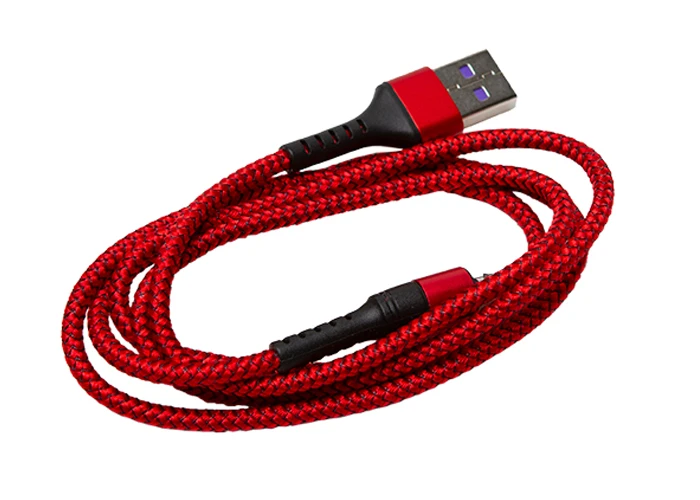
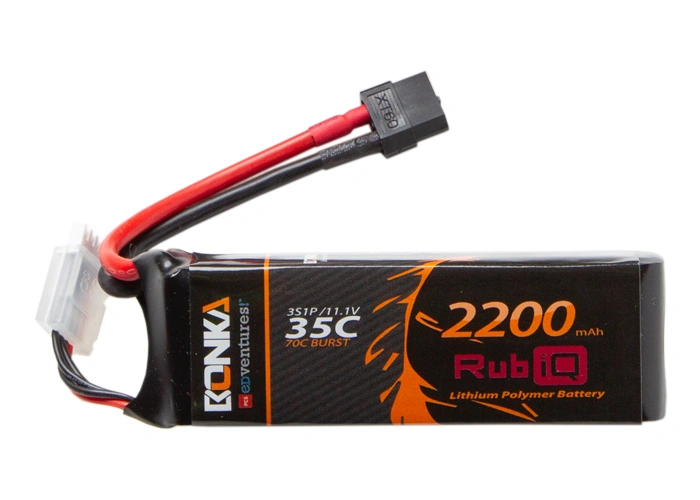
To check that the bind was successful, connect the drone to the RubiQ Configurator with the USB cable and attach the LiPo battery. Press Connect, then open the Receiver tab.[/et_pb_text][et_pb_image src=”https://staging.resources.edventures.com/wp-content/uploads/2025/06/Receiver-Tab-RubiQ-Configurator.webp” title_text=”Receiver Tab” show_in_lightbox=”on” _builder_version=”4.27.4″ _module_preset=”default” global_colors_info=”{}”][/et_pb_image][et_pb_text _builder_version=”4.27.4″ _module_preset=”default” global_colors_info=”{}”]To check the channel map settings, throttle up and down, pitch forward and back, roll and yaw left and right and watch to see that the corresponding bars move on the screen.[/et_pb_text][et_pb_text _builder_version=”4.27.4″ _module_preset=”default” custom_margin=”||0px||false|false” custom_padding=”||0px||false|false” global_colors_info=”{}”]
Throttle:
[/et_pb_text][et_pb_image src=”https://staging.resources.edventures.com/wp-content/uploads/2025/06/X7-Throttle.webp” title_text=”X7 Throttle” show_in_lightbox=”on” admin_label=”Throttle:” _builder_version=”4.27.4″ _module_preset=”default” custom_margin=”0px||0px||false|false” custom_padding=”0px||0px||false|false” global_colors_info=”{}”][/et_pb_image][et_pb_text _builder_version=”4.27.4″ _module_preset=”default” custom_margin=”||0px||false|false” custom_padding=”||0px||false|false” global_colors_info=”{}”]
Pitch:
[/et_pb_text][et_pb_image src=”https://staging.resources.edventures.com/wp-content/uploads/2025/06/X7-Pitch.webp” title_text=”X7 Pitch” show_in_lightbox=”on” admin_label=”Pitch:” _builder_version=”4.27.4″ _module_preset=”default” custom_margin=”0px||0px||false|false” custom_padding=”0px||0px||false|false” global_colors_info=”{}”][/et_pb_image][et_pb_text _builder_version=”4.27.4″ _module_preset=”default” custom_margin=”||0px||false|false” custom_padding=”||0px||false|false” global_colors_info=”{}”]
Yaw:
[/et_pb_text][et_pb_image src=”https://staging.resources.edventures.com/wp-content/uploads/2025/06/X7-Yaw.webp” title_text=”X7 Yaw” show_in_lightbox=”on” admin_label=”Yaw:” _builder_version=”4.27.4″ _module_preset=”default” custom_margin=”0px||0px||false|false” custom_padding=”0px||0px||false|false” global_colors_info=”{}”][/et_pb_image][et_pb_text _builder_version=”4.27.4″ _module_preset=”default” custom_margin=”||0px||false|false” custom_padding=”||0px||false|false” global_colors_info=”{}”]
Roll:
[/et_pb_text][et_pb_image src=”https://staging.resources.edventures.com/wp-content/uploads/2025/06/X7-Roll.webp” title_text=”X7 Roll” show_in_lightbox=”on” admin_label=”Roll:” _builder_version=”4.27.4″ _module_preset=”default” custom_margin=”0px||0px||false|false” custom_padding=”0px||0px||false|false” global_colors_info=”{}”][/et_pb_image][et_pb_text admin_label=”Troubleshooting” _builder_version=”4.27.4″ _module_preset=”default” global_colors_info=”{}”]
Troubleshooting:
If the channels aren’t mapped correctly, for example, the Roll bar moves when you raise the throttle on the radio), switch the Channel Map to Default/AETR (Aileron, Elevator, Throttle, Rudder) for the X9 Lite, press save and test the sticks again.[/et_pb_text][et_pb_image src=”https://staging.resources.edventures.com/wp-content/uploads/2025/06/Channel-Map-Troubleshooting-RubiQ-Configurator-AETR-Close.webp” title_text=”Channel-Map-Troubleshooting-RubiQ-Configurator-AETR-Close” show_in_lightbox=”on” _builder_version=”4.27.4″ _module_preset=”default” global_colors_info=”{}”][/et_pb_image][et_pb_text _builder_version=”4.27.4″ _module_preset=”default” global_colors_info=”{}”]If your bars aren’t moving in the RubiQ Configurator, then the bind was not successful. Return to Step 1 of the Configuration Guide and rework through the binding process.
If you continue to experience issues, check that you’re operating on the correct version of the RubiQ Configurator. You must download the RubiQ Configurator directly from the Download Configurator step.[/et_pb_text][/et_pb_column][/et_pb_row][/et_pb_section]