[et_pb_section fb_built=”1″ _builder_version=”4.27.4″ _module_preset=”default” global_colors_info=”{}”][et_pb_row _builder_version=”4.18.0″ _module_preset=”default” width=”100%” custom_margin=”|||0px|false|false” global_colors_info=”{}”][et_pb_column type=”4_4″ _builder_version=”4.18.0″ _module_preset=”default” global_colors_info=”{}”][et_pb_code _builder_version=”4.27.4″ _module_preset=”default” hover_enabled=”0″ global_colors_info=”{}” sticky_enabled=”0″]
What You Need:


Steps:
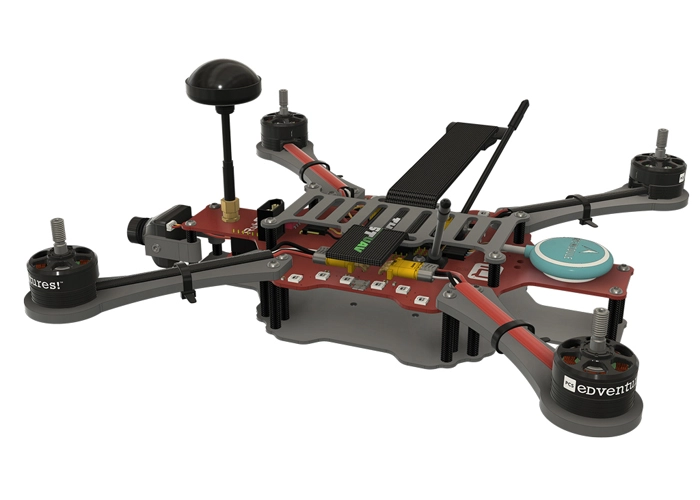
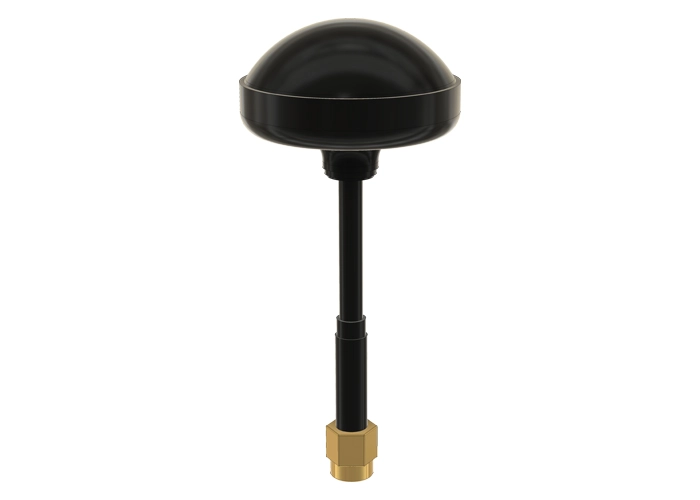
WARNING! Remove props and attach the antenna before verifying channel mapping.
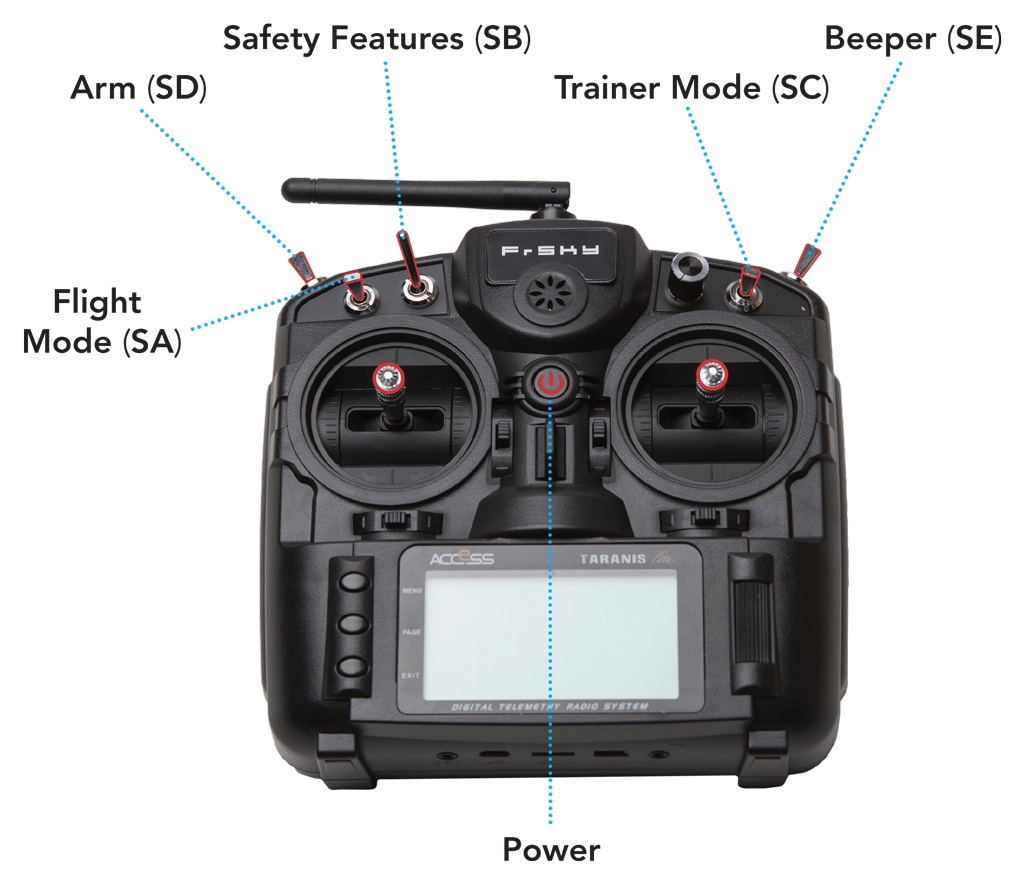
In a flight simulator, a pilot only needs two joysticks to control the on-screen drone — everything else is already taken care of by the virtual flight program. In real life, a number of other switches are needed to actually fly your drone. You’ll need these to set the flight mode, activate safety features and arm or disarm the drone — incredibly important features of safe piloting, both for spectators and RubiQ herself. These switches on the radio controller are configured in the RubiQ Configurator.
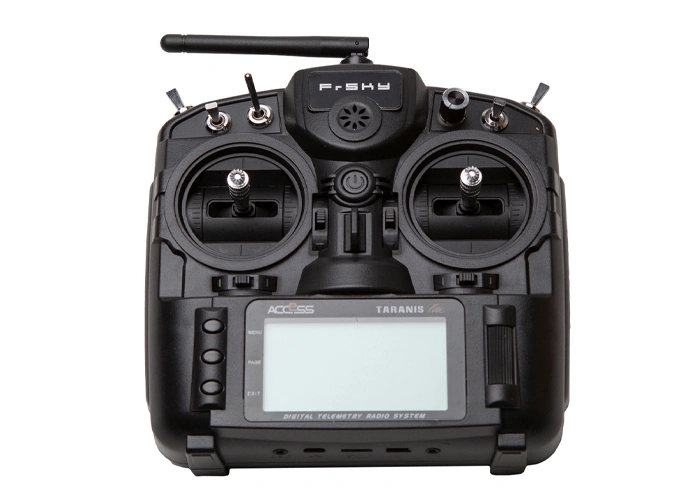
The recommended switch inputs and functions for the Taranis X9 Lite radio controller are:
- AUX 1/Channel 5: SD (Arm/Disarm)
- AUX 2/Channel 6: SA (Flight Mode)
- AUX 3/Channel 7: SB (Position Hold and Return to Home)
- AUX 4/Channel 8: SE (Beeper)
[/et_pb_text][et_pb_image src=”https://staging.resources.edventures.com/wp-content/uploads/2025/06/X9-Lite-Switch-diagram.webp” title_text=”X9-Lite-Switch-diagram” show_in_lightbox=”on” _builder_version=”4.27.4″ _module_preset=”default” global_colors_info=”{}”][/et_pb_image][et_pb_text admin_label=”callout” _builder_version=”4.27.4″ _module_preset=”default” background_color=”rgba(249,157,62,0.5)” custom_padding=”10px|20px|10px|20px|false|false” border_radii=”on|10px|10px|10px|10px” border_width_all=”3px” border_color_all=”#F99D3E” global_colors_info=”{}”]Radios purchased directly from PCS Edventures come with RubiQ’s inputs pre-configured as outlined above.
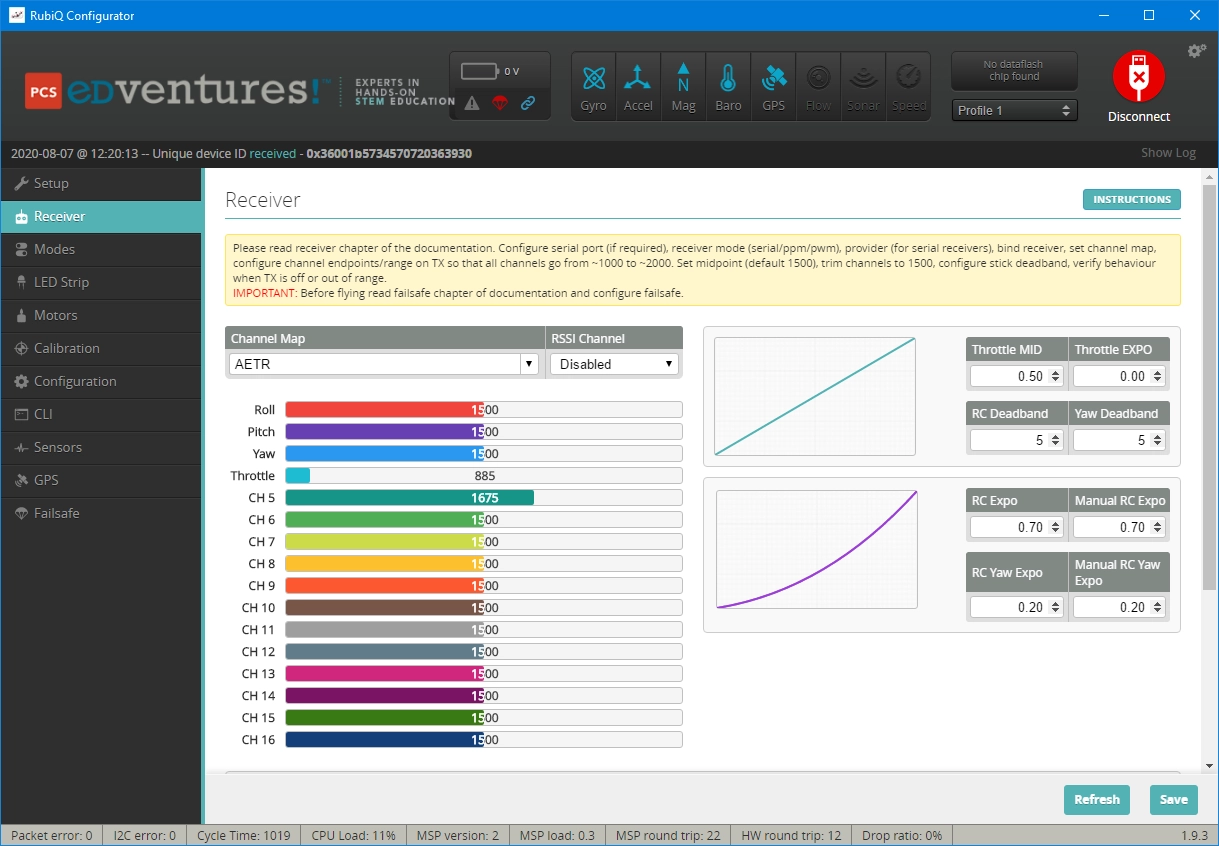
If your radio has been purchased elsewhere or tinkered with extensively, contact support for assistance to flash the RubiQ Radio Configuration file directly to the Taranis, or consult your radio’s user guide for manual set-up instructions.[/et_pb_text][et_pb_text _builder_version=”4.27.4″ _module_preset=”default” width=”100%” global_colors_info=”{}”]To check the AUX channel mapping, reconnect the USB cable and open the Receiver tab in the RubiQ Configurator.[/et_pb_text][et_pb_image src=”https://staging.resources.edventures.com/wp-content/uploads/2025/06/Receiver-Tab-RubiQ-Configurator.webp” title_text=”Receiver Tab” show_in_lightbox=”on” _builder_version=”4.27.4″ _module_preset=”default” global_colors_info=”{}”][/et_pb_image][et_pb_text _builder_version=”4.27.4″ _module_preset=”default” width=”100%” global_colors_info=”{}”]Move each of the four AUX switches on the radio and watch to see that the corresponding bar moves on the Channel Map.
On the Taranis X9 Lite radio controller, the SD switch on the radio should control the AUX 1/CH 5 bar. This will Arm and Disarm the drone.[/et_pb_text][et_pb_image src=”https://staging.resources.edventures.com/wp-content/uploads/2025/06/X9-Lite-Arm_Disarm.webp” title_text=”X9-Lite-Arm_Disarm” show_in_lightbox=”on” _builder_version=”4.27.4″ _module_preset=”default” global_colors_info=”{}”][/et_pb_image][et_pb_text _builder_version=”4.27.4″ _module_preset=”default” width=”100%” global_colors_info=”{}”]On the Taranis X9 Lite radio controller, the SA switch on the radio should control the AUX 2/CH 6 bar. This will set the Flight Mode.[/et_pb_text][et_pb_image src=”https://staging.resources.edventures.com/wp-content/uploads/2025/06/X9-Lite-Flight-Mode.webp” title_text=”X9-Lite-Flight-Mode” show_in_lightbox=”on” _builder_version=”4.27.4″ _module_preset=”default” global_colors_info=”{}”][/et_pb_image][et_pb_text _builder_version=”4.27.4″ _module_preset=”default” width=”100%” global_colors_info=”{}”]On the Taranis X9 Lite radio controller, SB controls AUX 3/CH 7. This will activate Position Hold and Return to Home.[/et_pb_text][et_pb_image src=”https://staging.resources.edventures.com/wp-content/uploads/2025/06/X9-Lite-Position-Hold_Return-to-Home.webp” title_text=”X9-Lite-Position-Hold_Return-to-Home” show_in_lightbox=”on” _builder_version=”4.27.4″ _module_preset=”default” global_colors_info=”{}”][/et_pb_image][et_pb_text _builder_version=”4.27.4″ _module_preset=”default” width=”100%” global_colors_info=”{}”]On the Taranis X9 Lite radio controller, SE controls AUX 4/CH 8. This will be the Beeper.[/et_pb_text][et_pb_image src=”https://staging.resources.edventures.com/wp-content/uploads/2025/06/X9-Lite-Beeper.webp” title_text=”X9-Lite-Beeper” show_in_lightbox=”on” _builder_version=”4.27.4″ _module_preset=”default” global_colors_info=”{}”][/et_pb_image][et_pb_text admin_label=”Troubleshooting” _builder_version=”4.27.4″ _module_preset=”default” global_colors_info=”{}”]
Troubleshooting:
If the channels aren’t mapped correctly, the radio may need to be reflashed to the original settings or manually reprogrammed. Contact support for assistance to flash a RubiQ Radio Configuration file directly to the Taranis, or consult your radio’s user guide for manual set-up instructions.[/et_pb_text][/et_pb_column][/et_pb_row][/et_pb_section]