
[et_pb_section fb_built=”1″ _builder_version=”4.27.4″ _module_preset=”default” global_colors_info=”{}”][et_pb_row _builder_version=”4.18.0″ _module_preset=”default” width=”100%” custom_margin=”|||0px|false|false” global_colors_info=”{}”][et_pb_column type=”4_4″ _builder_version=”4.18.0″ _module_preset=”default” global_colors_info=”{}”][et_pb_code _builder_version=”4.27.4″ _module_preset=”default” hover_enabled=”0″ global_colors_info=”{}” sticky_enabled=”0″]
What You Need:

Steps:
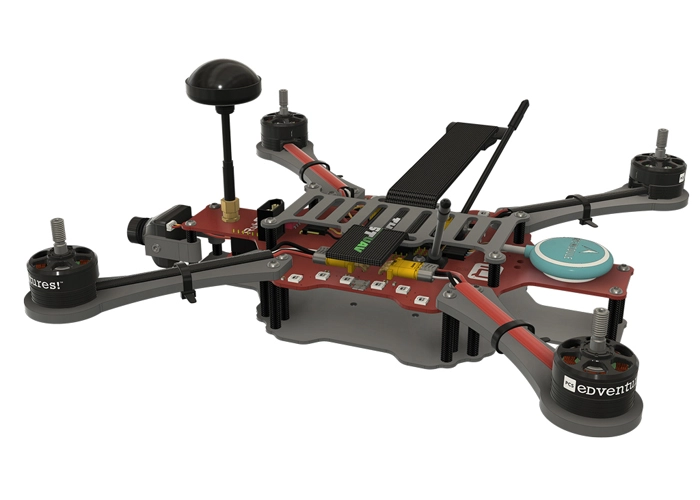
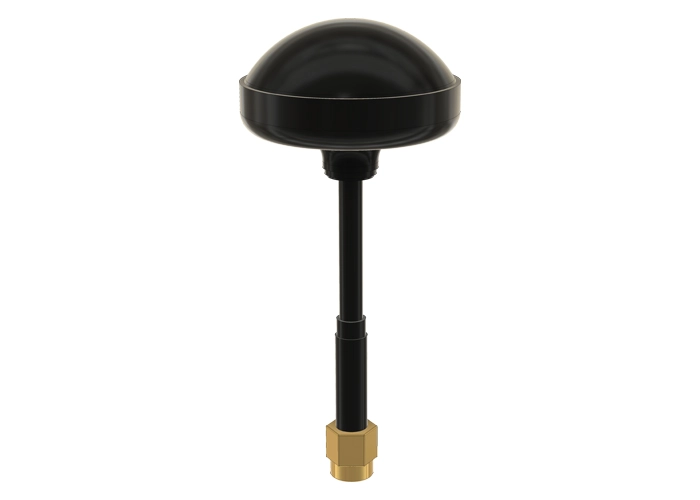
WARNING! Remove props and attach the antenna before testing the failsafe.
The failsafe is the set of commands that RubiQ will follow if she ever loses connection to the radio, either because she’s flown out of radio range or because the radio loses power and shuts down. By default, RubiQ’s failsafe is set to drop out of the sky, so make sure you never fly over people, buildings or property that could be damaged.
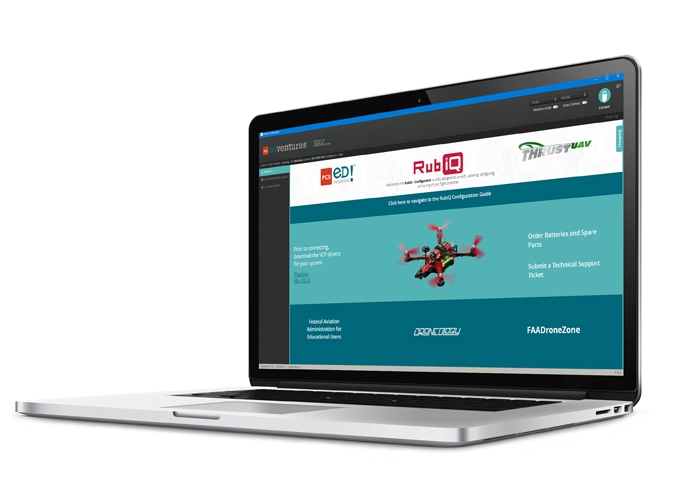
To check the failsafe, go to the Receiver tab in the RubiQ Configurator. To simulate the stick and switch positions that are active during flight, move the throttle up to around halfway and move the SD switch towards you to the “armed” position.[/et_pb_text][et_pb_image src=”https://staging.resources.edventures.com/wp-content/uploads/2025/06/Failsafe-_In-Flight_-2.0-X7.webp” title_text=”Failsafe-_In-Flight_-2.0-X7″ show_in_lightbox=”on” _builder_version=”4.27.4″ _module_preset=”default” global_colors_info=”{}”][/et_pb_image][et_pb_text _builder_version=”4.27.4″ _module_preset=”default” width=”100%” global_colors_info=”{}”]Then, power down the radio controller to simulate losing connection. Both the throttle and CH 5 bars should drop, meaning the controls have switched to throttle down and motors disarmed.[/et_pb_text][et_pb_image src=”https://staging.resources.edventures.com/wp-content/uploads/2025/06/Failsafe-_Lost-Connection_-2.0-X7.webp” title_text=”Failsafe-_Lost-Connection_-2.0-X7″ show_in_lightbox=”on” _builder_version=”4.27.4″ _module_preset=”default” global_colors_info=”{}”][/et_pb_image][et_pb_text admin_label=”Troubleshooting” _builder_version=”4.27.4″ _module_preset=”default” global_colors_info=”{}”]
Troubleshooting:
If RubiQ does not respond as expected, go back to Step 1B and reset the failsafe by following the Set The Failsafe procedure.[/et_pb_text][/et_pb_column][/et_pb_row][/et_pb_section]