
[et_pb_section fb_built=”1″ _builder_version=”4.27.4″ _module_preset=”default” global_colors_info=”{}”][et_pb_row _builder_version=”4.18.0″ _module_preset=”default” width=”100%” custom_margin=”|||0px|false|false” global_colors_info=”{}”][et_pb_column type=”4_4″ _builder_version=”4.18.0″ _module_preset=”default” global_colors_info=”{}”][et_pb_code _builder_version=”4.27.4″ _module_preset=”default” hover_enabled=”0″ global_colors_info=”{}” sticky_enabled=”0″]
What You Need:
Steps:
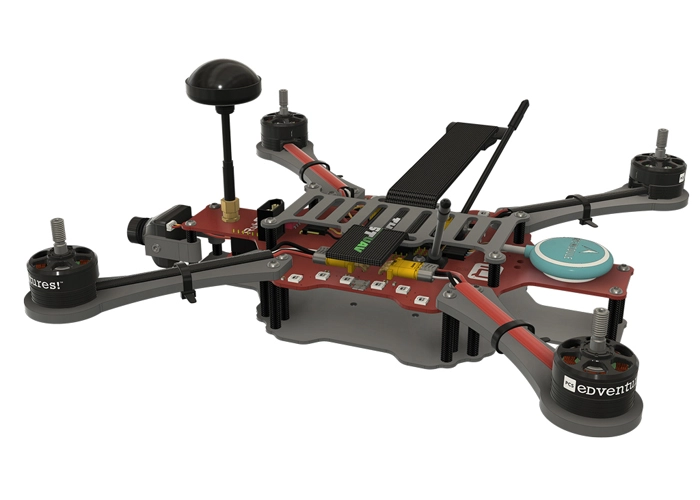
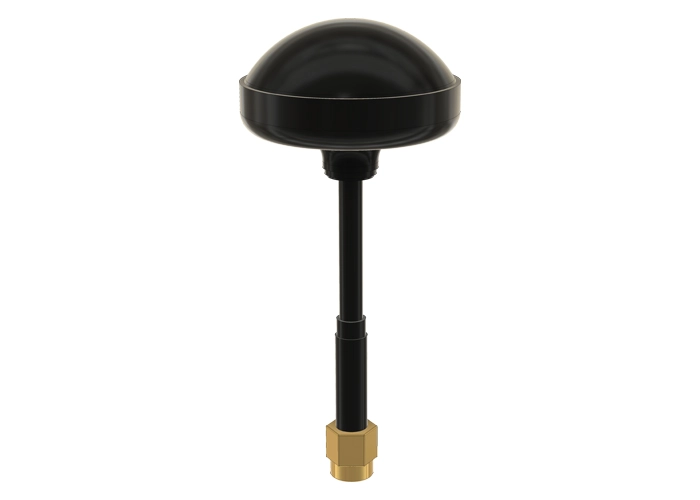
WARNING! Remove props and attach the antenna before calibrating the accelerometer.
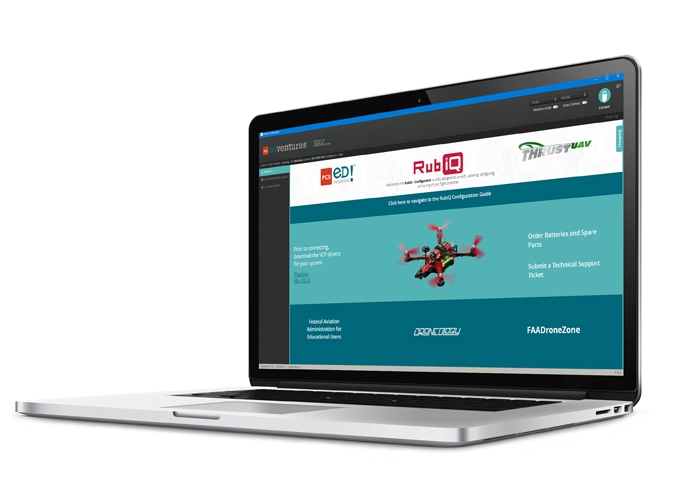
Connect to the RubiQ Configurator and open the Calibration tab.[/et_pb_text][et_pb_image src=”https://staging.resources.edventures.com/wp-content/uploads/2025/06/Calibration-RubiQ-Configurator.png.webp” title_text=”Calibration-RubiQ-Configurator.png” show_in_lightbox=”on” _builder_version=”4.27.4″ _module_preset=”default” global_colors_info=”{}”][/et_pb_image][et_pb_text _builder_version=”4.27.4″ _module_preset=”default” width=”100%” global_colors_info=”{}”]
Calibrating the accelerometer requires holding RubiQ in the 6 different positions shown on the screen. Click the Calibrate Accelerometer button, which will open a screen telling you to position the drone in each of the 6 positions shown. Click OK.
To record the data points, hold RubiQ in each of the 6 positions then press the Calibrate Accelerometer button again to capture the data. It’s okay if the drone isn’t perfectly aligned, as long as the positions are roughly 90 degrees apart and held stationary while the data is captured. RubiQ will beep three times and the corresponding step in the RubiQ Configurator will check off after each data point is successfully recorded:
[/et_pb_text][et_pb_image src=”https://staging.resources.edventures.com/wp-content/uploads/2025/06/Accelerometer-Calibrated-Final-Checks.png.webp” title_text=”Accelerometer-Calibrated-Final-Checks.png” show_in_lightbox=”on” _builder_version=”4.27.4″ _module_preset=”default” global_colors_info=”{}”][/et_pb_image][et_pb_text admin_label=”Troubleshooting” _builder_version=”4.27.4″ _module_preset=”default” global_colors_info=”{}”]After the sixth position, the RubiQ Configurator will show a new screen telling you that the Calibration is complete.
Troubleshooting:
If you hear a long screaming beep rather than three short beeps after the first step, the drone was probably not held in the correct orientation. Physically disconnect from the RubiQ Configurator, check that the drone is flat on the table and start the process again.[/et_pb_text][/et_pb_column][/et_pb_row][/et_pb_section]